LiteLLM Content Filter (Built-in Guardrails)
Built-in guardrail for detecting and filtering sensitive information using regex patterns and keyword matching. No external dependencies required.
When to use? Good for cases which do not require an ML model to detect sensitive information.
Overview
| Property | Details |
|---|---|
| Description | On-device guardrail for detecting and filtering sensitive information using regex patterns and keyword matching. Built into LiteLLM with no external dependencies. |
| Guardrail Name | litellm_content_filter |
| Detection Methods | Prebuilt regex patterns, custom regex, keyword matching |
| Actions | BLOCK (reject request), MASK (redact content) |
| Supported Modes | pre_call, post_call, during_call (streaming) |
| Performance | Fast - runs locally, no external API calls |
Quick Start
LiteLLM UI
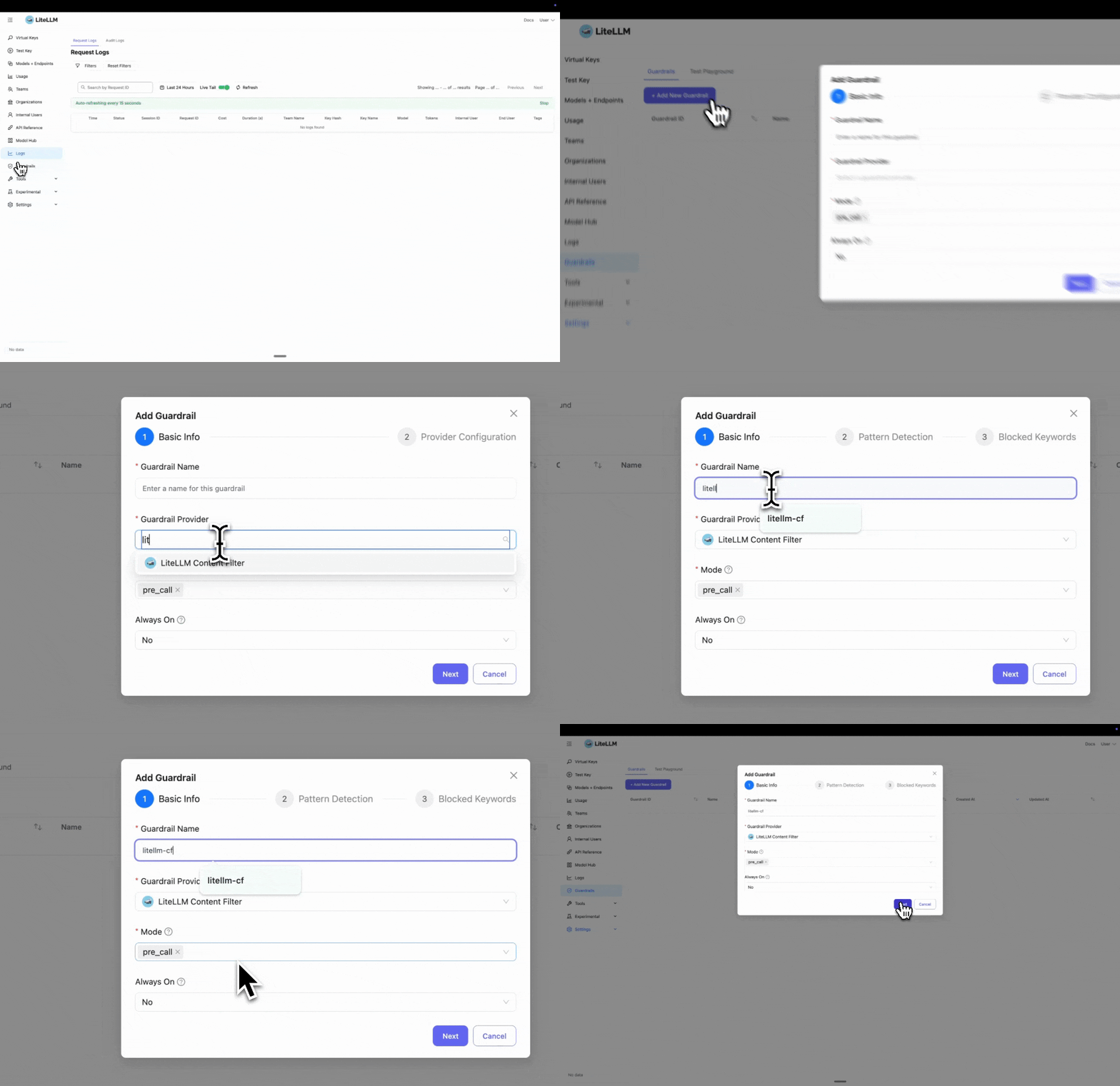
Step 1: Select LiteLLM Content Filter
Click "Add New Guardrail" and select "LiteLLM Content Filter" as your guardrail provider.
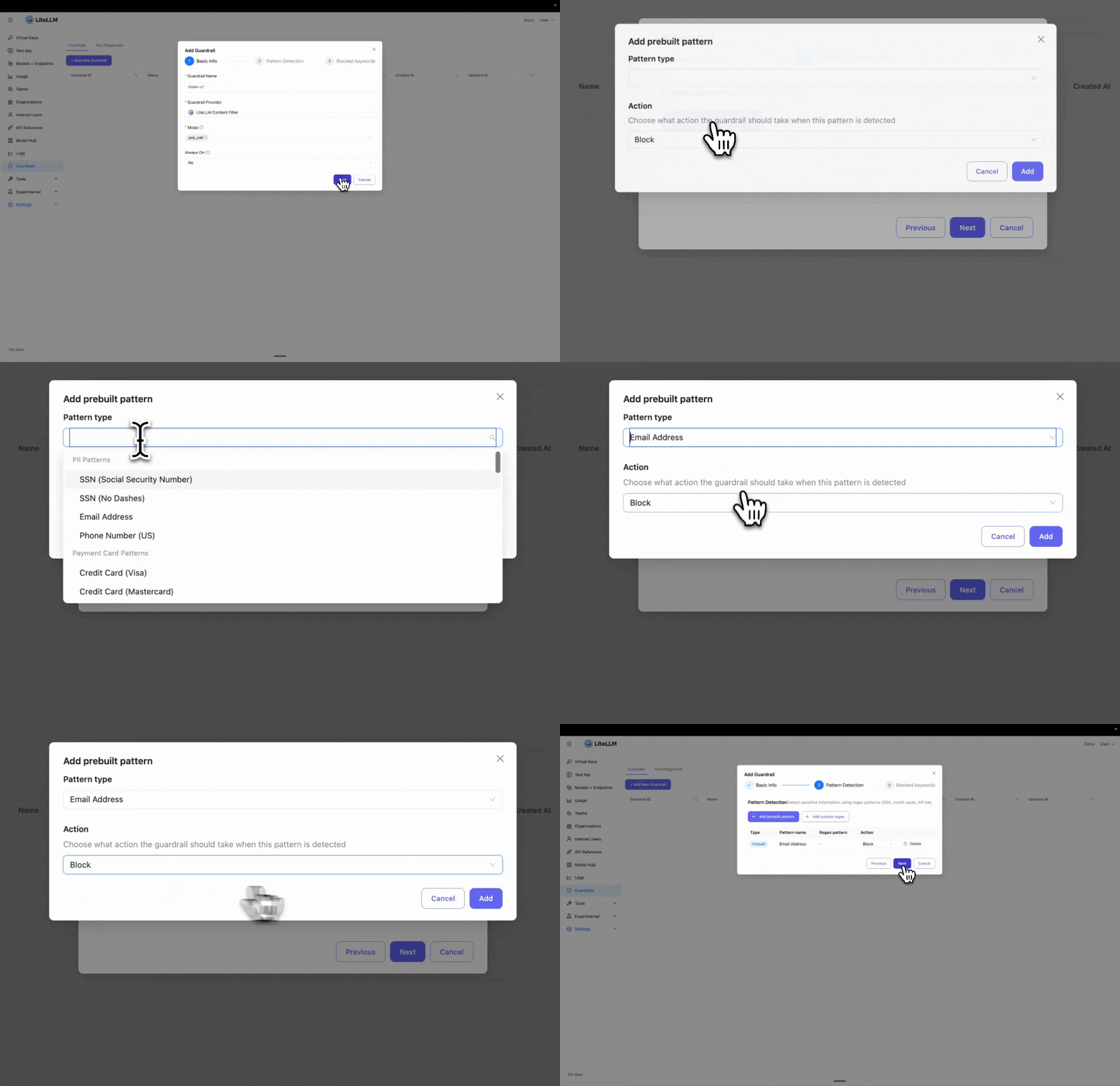
Step 2: Configure Pattern Detection
Select the prebuilt entities you want to block or mask. In this example, we select "Email" to detect and block email addresses.
If you need to block a custom entity, you can add a custom regex pattern by clicking "Add custom regex".
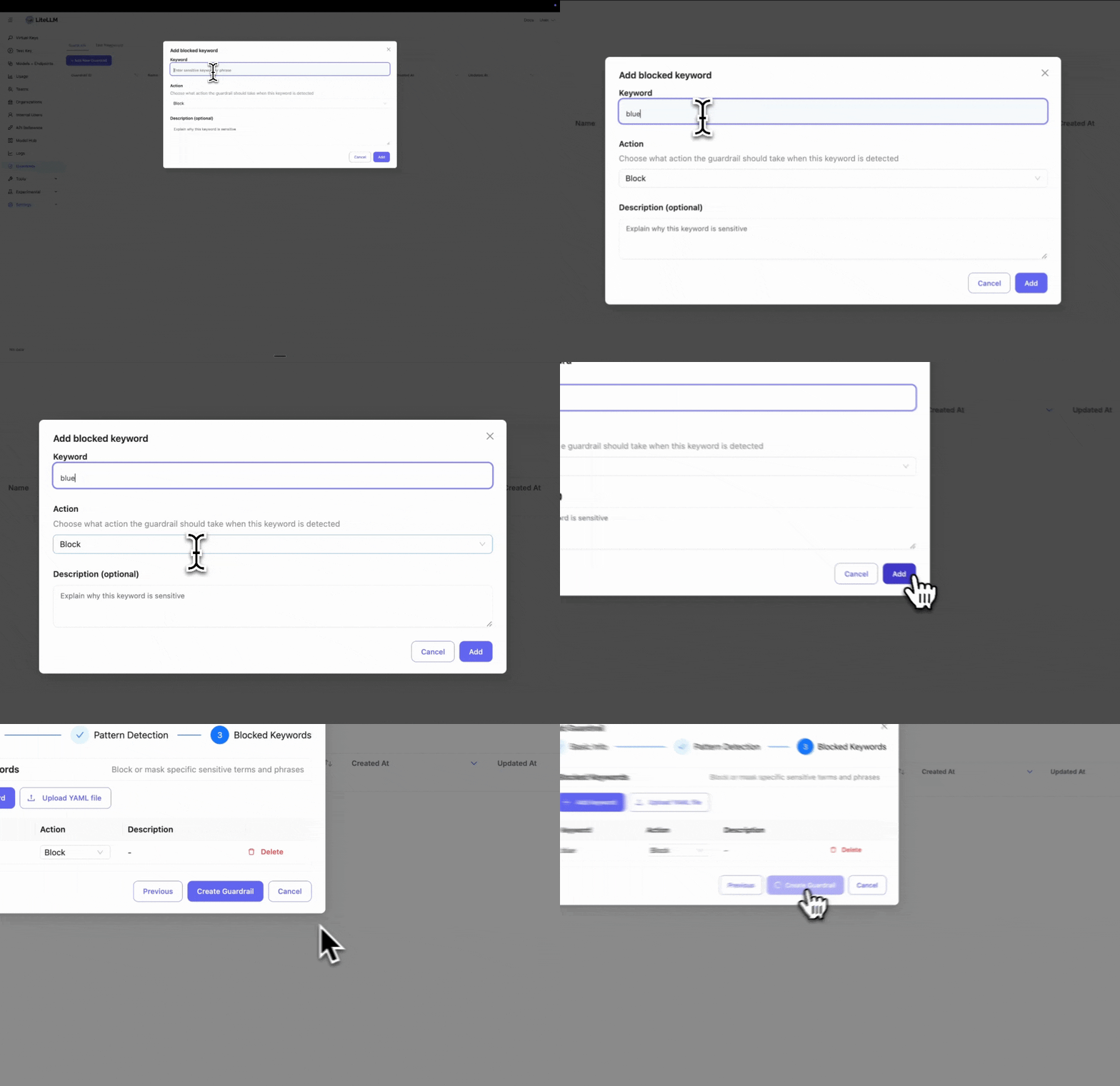
Step 3: Add Blocked Keywords
Enter specific keywords you want to block. This is useful if you have policies to block certain words or phrases.
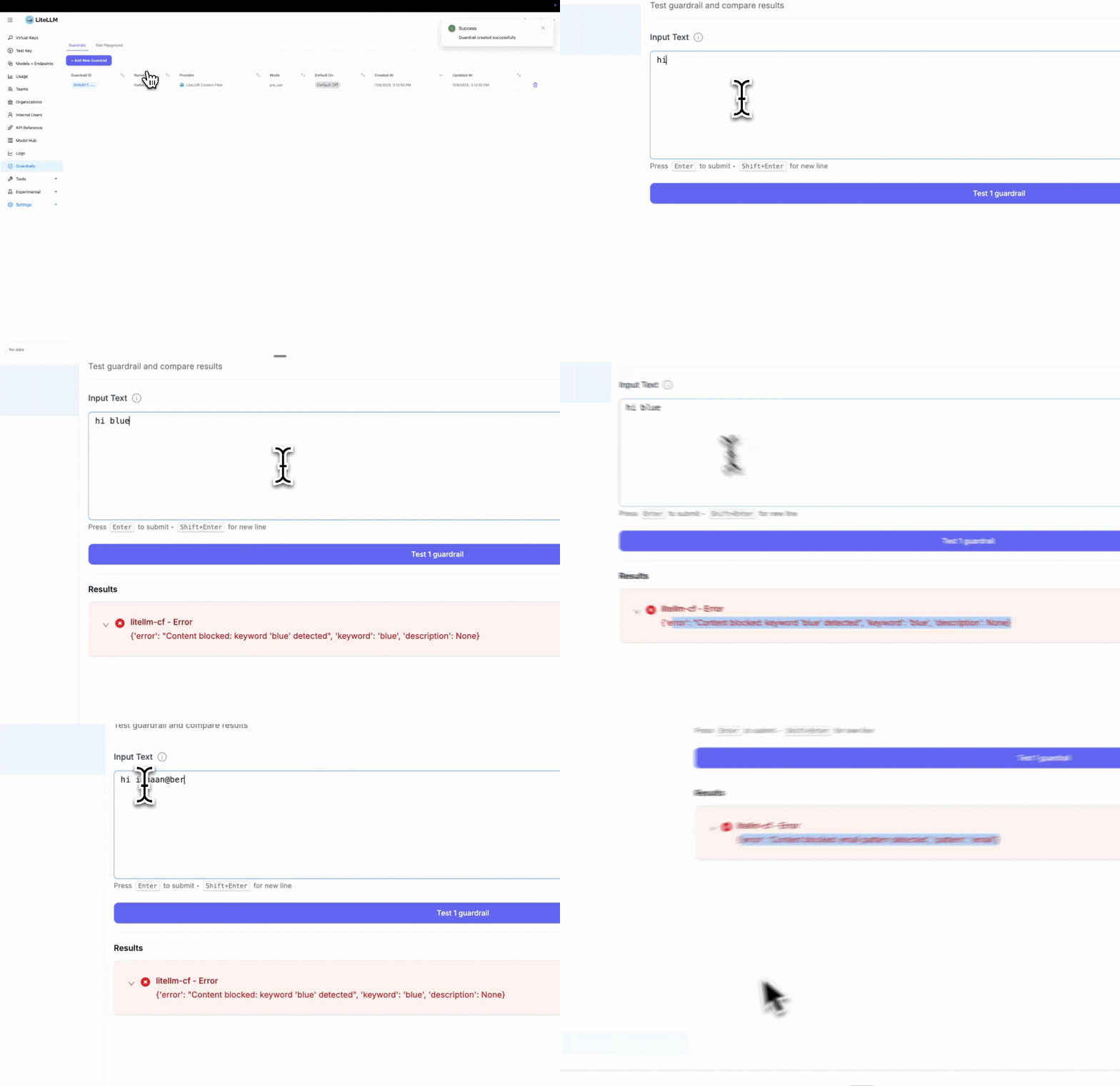
Step 4: Test Your Guardrail
After creating the guardrail, navigate to "Test Playground" to test it. Select the guardrail you just created.
Test examples:
- Blocked keyword test: Entering "hi blue" will trigger the block since we set "blue" as a blocked keyword
- Pattern detection test: Entering "Hi ishaan@berri.ai" will trigger the email pattern detector
LiteLLM Config.yaml Setup
Step 1: Define Guardrails in config.yaml
- Harmful Content Detection
- PII Protection
- Combined
model_list:
  - model_name: gpt-3.5-turbo
    litellm_params:
      model: openai/gpt-3.5-turbo
      api_key: os.environ/OPENAI_API_KEY

guardrails:
  - guardrail_name: "harmful-content-filter"
    litellm_params:
      guardrail: litellm_content_filter
      mode: "pre_call"

      # Enable harmful content categories
      categories:
        - category: "harmful_self_harm"
          enabled: true
          action: "BLOCK"
          severity_threshold: "medium"

        - category: "harmful_violence"
          enabled: true
          action: "BLOCK"
          severity_threshold: "medium"

        - category: "harmful_illegal_weapons"
          enabled: true
          action: "BLOCK"
          severity_threshold: "medium"
model_list:
  - model_name: gpt-3.5-turbo
    litellm_params:
      model: openai/gpt-3.5-turbo
      api_key: os.environ/OPENAI_API_KEY

guardrails:
  - guardrail_name: "content-filter-pre"
    litellm_params:
      guardrail: litellm_content_filter
      mode: "pre_call"

      # Prebuilt patterns for common PII
      patterns:
        - pattern_type: "prebuilt"
          pattern_name: "us_ssn"
          action: "BLOCK"

        - pattern_type: "prebuilt"
          pattern_name: "email"
          action: "MASK"

      # Custom blocked keywords
      blocked_words:
        - keyword: "confidential"
          action: "BLOCK"
          description: "Sensitive internal information"
model_list:
  - model_name: gpt-3.5-turbo
    litellm_params:
      model: openai/gpt-3.5-turbo
      api_key: os.environ/OPENAI_API_KEY

guardrails:
  - guardrail_name: "comprehensive-filter"
    litellm_params:
      guardrail: litellm_content_filter
      mode: "pre_call"

      # Harmful content categories
      categories:
        - category: "harmful_violence"
          enabled: true
          action: "BLOCK"
          severity_threshold: "high"

      # PII patterns
      patterns:
        - pattern_type: "prebuilt"
          pattern_name: "us_ssn"
          action: "BLOCK"
        - pattern_type: "prebuilt"
          pattern_name: "email"
          action: "MASK"

      # Custom keywords
      blocked_words:
        - keyword: "confidential"
          action: "BLOCK"
Step 2: Start LiteLLM Gateway
litellm --config config.yaml
Step 3: Test Request
- SSN Blocked
- Email Masked
curl -i http://localhost:4000/v1/chat/completions \
  -H "Content-Type: application/json" \
  -H "Authorization: Bearer sk-1234" \
  -d '{
    "model": "gpt-3.5-turbo",
    "messages": [
      {"role": "user", "content": "My SSN is 123-45-6789"}
    ],
    "guardrails": ["content-filter-pre"]
  }'
Response: HTTP 400 Error
{
  "error": {
    "message": {
      "error": "Content blocked: us_ssn pattern detected",
      "pattern": "us_ssn"
    },
    "code": "400"
  }
}
curl -i http://localhost:4000/v1/chat/completions \
  -H "Content-Type: application/json" \
  -H "Authorization: Bearer sk-1234" \
  -d '{
    "model": "gpt-3.5-turbo",
    "messages": [
      {"role": "user", "content": "Contact me at john@example.com"}
    ],
    "guardrails": ["content-filter-pre"]
  }'
The request is sent to the LLM with the email masked:
Contact me at [EMAIL_REDACTED]
Configuration
Supported Modes
pre_call- Run before LLM call, filters input messagespost_call- Run after LLM call, filters output responsesduring_call- Run during streaming, filters each chunk in real-time
Actions
BLOCK- Reject the request with HTTP 400 errorMASK- Replace sensitive content with redaction tags (e.g.,[EMAIL_REDACTED])
Prebuilt Patterns
Available Patterns
| Pattern Name | Description | Example |
|---|---|---|
us_ssn | US Social Security Numbers | 123-45-6789 |
email | Email addresses | user@example.com |
phone | Phone numbers | +1-555-123-4567 |
visa | Visa credit cards | 4532-1234-5678-9010 |
mastercard | Mastercard credit cards | 5425-2334-3010-9903 |
amex | American Express cards | 3782-822463-10005 |
aws_access_key | AWS access keys | AKIAIOSFODNN7EXAMPLE |
aws_secret_key | AWS secret keys | wJalrXUtnFEMI/K7MDENG/bPxRfi... |
github_token | GitHub tokens | ghp_16C7e42F292c6912E7710c838347Ae178B4a |
Using Prebuilt Patterns
guardrails:
  - guardrail_name: "pii-filter"
    litellm_params:
      guardrail: litellm_content_filter
      mode: "pre_call"
      patterns:
        - pattern_type: "prebuilt"
          pattern_name: "us_ssn"
          action: "BLOCK"

        - pattern_type: "prebuilt"
          pattern_name: "email"
          action: "MASK"

        - pattern_type: "prebuilt"
          pattern_name: "aws_access_key"
          action: "BLOCK"
Custom Regex Patterns
Define your own regex patterns for domain-specific sensitive data:
guardrails:
  - guardrail_name: "custom-patterns"
    litellm_params:
      guardrail: litellm_content_filter
      mode: "pre_call"
      patterns:
        # Custom employee ID format
        - pattern_type: "regex"
          pattern: '\b[A-Z]{3}-\d{4}\b'
          name: "employee_id"
          action: "MASK"

        # Custom project code format
        - pattern_type: "regex"
          pattern: 'PROJECT-\d{6}'
          name: "project_code"
          action: "BLOCK"
Keyword Filtering
Block or mask specific keywords:
guardrails:
  - guardrail_name: "keyword-filter"
    litellm_params:
      guardrail: litellm_content_filter
      mode: "pre_call"
      blocked_words:
        - keyword: "confidential"
          action: "BLOCK"
          description: "Internal confidential information"

        - keyword: "proprietary"
          action: "MASK"
          description: "Proprietary company data"

        - keyword: "secret_project"
          action: "BLOCK"
Loading Keywords from File
For large keyword lists, use a YAML file:
guardrails:
  - guardrail_name: "keyword-file-filter"
    litellm_params:
      guardrail: litellm_content_filter
      mode: "pre_call"
      blocked_words_file: "/path/to/sensitive_keywords.yaml"
blocked_words:
  - keyword: "project_apollo"
    action: "BLOCK"
    description: "Confidential project codename"

  - keyword: "internal_api"
    action: "MASK"
    description: "Internal API references"

  - keyword: "customer_database"
    action: "BLOCK"
    description: "Protected database name"
Streaming Support
Content filter works with streaming responses by checking each chunk:
guardrails:
  - guardrail_name: "streaming-filter"
    litellm_params:
      guardrail: litellm_content_filter
      mode: "during_call"  # Check each streaming chunk
      patterns:
        - pattern_type: "prebuilt"
          pattern_name: "email"
          action: "MASK"
import openai

client = openai.OpenAI(
    api_key="sk-1234",
    base_url="http://localhost:4000"
)

response = client.chat.completions.create(
    model="gpt-3.5-turbo",
    messages=[{"role": "user", "content": "Tell me about yourself"}],
    stream=True,
    extra_body={"guardrails": ["streaming-filter"]}
)

for chunk in response:
    print(chunk.choices[0].delta.content)
    # Emails automatically masked in real-time
Customizing Redaction Tags
When using the MASK action, sensitive content is replaced with redaction tags. You can customize how these tags appear.
Default Behavior
Patterns: Each pattern type gets its own tag based on the pattern name
Input:  "My email is john@example.com and SSN is 123-45-6789"
Output: "My email is [EMAIL_REDACTED] and SSN is [US_SSN_REDACTED]"
Keywords: All keywords use the same generic tag
Input:  "This is confidential and proprietary information"
Output: "This is [KEYWORD_REDACTED] and [KEYWORD_REDACTED] information"
Customizing Tags
Use pattern_redaction_format and keyword_redaction_tag to change the redaction format:
guardrails:
  - guardrail_name: "custom-redaction"
    litellm_params:
      guardrail: litellm_content_filter
      mode: "pre_call"
      pattern_redaction_format: "***{pattern_name}***"  # Use {pattern_name} placeholder
      keyword_redaction_tag: "***REDACTED***"
      patterns:
        - pattern_type: "prebuilt"
          pattern_name: "email"
          action: "MASK"
        - pattern_type: "prebuilt"
          pattern_name: "us_ssn"
          action: "MASK"
      blocked_words:
        - keyword: "confidential"
          action: "MASK"
Output:
Input:  "Email john@example.com, SSN 123-45-6789, confidential data"
Output: "Email ***EMAIL***, SSN ***US_SSN***, ***REDACTED*** data"
Key Points:
pattern_redaction_formatmust include{pattern_name}placeholder- Pattern names are automatically uppercased (e.g.,
email→EMAIL) keyword_redaction_tagis a fixed string (no placeholders)
Content Categories
Prebuilt categories use keyword matching to detect harmful content, bias, and inappropriate advice. Keywords are matched with word boundaries (single words) or as substrings (multi-word phrases), case-insensitive.
Available Categories
| Category | Description |
|---|---|
| Harmful Content | |
harmful_self_harm | Self-harm, suicide, eating disorders |
harmful_violence | Violence, criminal planning, attacks |
harmful_illegal_weapons | Illegal weapons, explosives, dangerous materials |
| Bias Detection | |
bias_gender | Gender-based discrimination, stereotypes |
bias_sexual_orientation | LGBTQ+ discrimination, homophobia, transphobia |
bias_racial | Racial/ethnic discrimination, stereotypes |
bias_religious | Religious discrimination, stereotypes |
| Denied Advice | |
denied_financial_advice | Personalized financial advice, investment recommendations |
denied_medical_advice | Medical advice, diagnosis, treatment recommendations |
denied_legal_advice | Legal advice, representation, legal strategy |
Bias detection is complex and context-dependent. Rule-based systems catch explicit discriminatory language but may generate false positives on legitimate discussions. Start with high severity thresholds and test thoroughly. For mission-critical bias detection, consider combining with AI-based guardrails (e.g., HiddenLayer, Lakera).
Configuration
guardrails:
  - guardrail_name: "content-filter"
    litellm_params:
      guardrail: litellm_content_filter
      mode: "pre_call"

      categories:
        - category: "harmful_self_harm"
          enabled: true
          action: "BLOCK"
          severity_threshold: "medium"  # Blocks medium+ severity

        - category: "bias_gender"
          enabled: true
          action: "BLOCK"
          severity_threshold: "high"  # Only explicit discrimination

        - category: "denied_financial_advice"
          enabled: true
          action: "BLOCK"
          severity_threshold: "medium"
Severity Thresholds:
"high"- Only blocks high severity items"medium"- Blocks medium and high severity (default)"low"- Blocks all severity levels
Custom Category Files
Override default categories with custom keyword lists:
categories:
  - category: "harmful_self_harm"
    enabled: true
    action: "BLOCK"
    severity_threshold: "medium"
    category_file: "/path/to/custom.yaml"
category_name: "harmful_self_harm"
description: "Custom self-harm detection"
default_action: "BLOCK"

keywords:
  - keyword: "suicide"
    severity: "high"
  - keyword: "harm myself"
    severity: "high"

exceptions:
  - "suicide prevention"
  - "mental health"
Use Cases
1. Harmful Content Detection
Block or detect requests containing harmful, illegal, or dangerous content:
categories:
  - category: "harmful_self_harm"
    enabled: true
    action: "BLOCK"
    severity_threshold: "medium"
  - category: "harmful_violence"
    enabled: true
    action: "BLOCK"
    severity_threshold: "high"
  - category: "harmful_illegal_weapons"
    enabled: true
    action: "BLOCK"
    severity_threshold: "medium"
2. Bias and Discrimination Detection
Detect and block biased, discriminatory, or hateful content across multiple dimensions:
categories:
  # Gender-based discrimination
  - category: "bias_gender"
    enabled: true
    action: "BLOCK"
    severity_threshold: "medium"

  # LGBTQ+ discrimination
  - category: "bias_sexual_orientation"
    enabled: true
    action: "BLOCK"
    severity_threshold: "medium"

  # Racial/ethnic discrimination
  - category: "bias_racial"
    enabled: true
    action: "BLOCK"
    severity_threshold: "high"  # Only explicit to reduce false positives

  # Religious discrimination
  - category: "bias_religious"
    enabled: true
    action: "BLOCK"
    severity_threshold: "medium"
Sensitivity Tuning:
For bias detection, severity thresholds are critical to balance safety and legitimate discourse:
# Conservative (low false positives, may miss subtle bias)
categories:
  - category: "bias_racial"
    severity_threshold: "high"  # Only blocks explicit discriminatory language

# Balanced (recommended)
categories:
  - category: "bias_gender"
    severity_threshold: "medium"  # Blocks stereotypes and explicit discrimination

# Strict (high safety, may have more false positives)
categories:
  - category: "bias_sexual_orientation"
    severity_threshold: "low"  # Blocks all potentially problematic content
3. PII Protection
Block or mask personally identifiable information before sending to LLMs:
patterns:
  - pattern_type: "prebuilt"
    pattern_name: "us_ssn"
    action: "BLOCK"
  - pattern_type: "prebuilt"
    pattern_name: "email"
    action: "MASK"
2. Credential Detection
Prevent API keys and secrets from being exposed:
patterns:
  - pattern_type: "prebuilt"
    pattern_name: "aws_access_key"
    action: "BLOCK"
  - pattern_type: "prebuilt"
    pattern_name: "github_token"
    action: "BLOCK"
3. Sensitive Internal Data Protection
Block or mask references to confidential internal projects, codenames, or proprietary information:
blocked_words:
  - keyword: "project_titan"
    action: "BLOCK"
    description: "Confidential project codename"
  - keyword: "internal_api"
    action: "MASK"
    description: "Internal system references"
For large lists of sensitive terms, use a file:
blocked_words_file: "/path/to/sensitive_terms.yaml"
4. Safe AI for Consumer Applications
Combining harmful content and bias detection for consumer-facing AI:
guardrails:
  - guardrail_name: "safe-consumer-ai"
    litellm_params:
      guardrail: litellm_content_filter
      mode: "pre_call"

      categories:
        # Harmful content - strict
        - category: "harmful_self_harm"
          enabled: true
          action: "BLOCK"
          severity_threshold: "medium"

        - category: "harmful_violence"
          enabled: true
          action: "BLOCK"
          severity_threshold: "medium"

        # Bias detection - balanced
        - category: "bias_gender"
          enabled: true
          action: "BLOCK"
          severity_threshold: "high"  # Avoid blocking legitimate gender discussions

        - category: "bias_sexual_orientation"
          enabled: true
          action: "BLOCK"
          severity_threshold: "medium"

        - category: "bias_racial"
          enabled: true
          action: "BLOCK"
          severity_threshold: "high"  # Education and news may discuss race
Perfect for:
- Chatbots and virtual assistants
- Educational AI tools
- Customer service AI
- Content generation platforms
- Public-facing AI applications
5. Compliance
Ensure regulatory compliance by filtering sensitive data types:
patterns:
  - pattern_type: "prebuilt"
    pattern_name: "visa"
    action: "BLOCK"
  - pattern_type: "prebuilt"
    pattern_name: "us_ssn"
    action: "BLOCK"
Best Practices for Bias Detection
Choosing the Right Severity Threshold
Bias detection requires careful tuning to avoid blocking legitimate content:
High Threshold (Recommended for most use cases)
- Blocks only explicit discriminatory language
- Lower false positives
- Allows nuanced discussions about identity, diversity, and social issues
- Good for: Public-facing applications, education, research
Medium Threshold
- Blocks stereotypes and generalizations
- Balanced approach
- May catch some edge cases in legitimate discourse
- Good for: Consumer applications, internal tools, moderated environments
Low Threshold
- Strictest filtering
- Blocks even borderline language
- Higher false positives but maximum safety
- Good for: Youth-focused applications, highly controlled environments
Testing Your Bias Filters
Always test with realistic use cases:
# Test legitimate discussions (should NOT be blocked)
- "Our company has a gender diversity initiative"
- "Research shows racial disparities in healthcare"
- "We support LGBTQ+ rights and equality"
- "Religious freedom is a fundamental right"

# Test discriminatory content (SHOULD be blocked)
- "Women are too emotional to lead"
- "All [group] are [negative stereotype]"
- "Being gay is unnatural"
- "[Religious group] are all extremists"
Monitoring and Iteration
- Log blocked requests to review false positives
- Add exceptions for legitimate terms in your domain
- Adjust severity thresholds based on your audience
- Use custom category files for domain-specific bias patterns
Cultural and Linguistic Considerations
The prebuilt categories focus on English and common patterns. For other languages or cultural contexts:
- Create custom category files with region-specific terms
- Consult with native speakers and cultural experts
- Include local slurs and stereotypes
- Adjust severity based on regional norms
Troubleshooting
False Positives with Bias Detection
Issue: Legitimate discussions about diversity, identity, or social issues are being blocked
Solutions:
- Raise severity threshold:
categories:
  - category: "bias_racial"
    severity_threshold: "high"  # Only explicit discrimination
- Add domain-specific exceptions:
# my_custom_bias_gender.yaml
exceptions:
  - "gender pay gap"
  - "gender diversity"
  - "women in tech"
  - "gender equality"
  - "dei initiative"
  - "inclusion program"
- Review what was blocked: Check error details to understand what triggered the block:
{
  "error": "Content blocked: bias_gender category keyword 'women' detected (severity: medium)",
  "category": "bias_gender",
  "keyword": "women",
  "severity": "medium"
}
If this is a false positive, add "women in leadership" or other legitimate phrases to exceptions in your custom category file.
False Positives with Categories
Issue: Legitimate content is being blocked by category filters
Solution 1: Adjust severity threshold to only block high-severity items:
categories:
  - category: "harmful_violence"
    enabled: true
    action: "BLOCK"
    severity_threshold: "high"  # Only block explicit harmful content
Solution 2: Add exceptions to your custom category file:
# my_custom_violence.yaml
exceptions:
  - "crime statistics"
  - "documentary"
  - "news report"
  - "historical context"
Solution 3: Use a custom category file with your own curated keyword list:
categories:
  - category: "harmful_violence"
    enabled: true
    action: "BLOCK"
    category_file: "/path/to/my_violence_keywords.yaml"
Category Not Loading
Issue: Category is not being applied
Checklist:
- Verify category is enabled:
enabled: true - Check category name matches file:
harmful_self_harm.yaml - Check file exists in
litellm/proxy/guardrails/guardrail_hooks/litellm_content_filter/categories/ - Review logs for loading errors:
litellm --config config.yaml --detailed_debug
Keyword Not Matching
Issue: Expected keyword is not being detected
Solutions:
-
For single words: Ensure the keyword appears as a whole word. The system uses word boundary matching, so "men" won't match "recommend".
-
For multi-word phrases: Use the exact phrase as it should appear. Multi-word keywords are matched as substrings (case-insensitive), so "harm myself" will match "I want to harm myself" or "harming myself".
-
Check exceptions: If your keyword is in the exceptions list, it won't be detected. Review the category file's exceptions section.
-
Verify severity threshold: Lower severity keywords won't match if your threshold is set too high. For example, if a keyword has
severity: "low"but yourseverity_threshold: "high", it won't match.
Too Many False Negatives
Issue: Harmful content is not being caught
Solution 1: Lower severity threshold:
severity_threshold: "low" # Catch more but may increase false positives
Solution 2: Add custom keywords for your specific use case:
categories:
  - category: "harmful_violence"
    enabled: true
    category_file: "/path/to/enhanced_violence.yaml"

# In enhanced_violence.yaml, add domain-specific keywords
keywords:
  - keyword: "your specific harmful phrase"
    severity: "high"
  - keyword: "another harmful term"
    severity: "medium"
Pattern Not Matching
Issue: Regex pattern isn't detecting expected content
Solution: Test your regex pattern:
import re
pattern = r'\b[A-Z]{3}-\d{4}\b'
test_text = "Employee ID: ABC-1234"
print(re.search(pattern, test_text))  # Should match
Multiple Pattern Matches
Issue: Text contains multiple sensitive patterns
Solution: Guardrail checks in this order: categories (keywords), regex patterns, then blocked words. Order by priority:
# Categories checked first (high priority)
# Category keywords are matched first
categories:
  - category: "harmful_self_harm"
    severity_threshold: "high"

# Then regex patterns
patterns:
  - pattern_type: "prebuilt"
    pattern_name: "us_ssn"
    action: "BLOCK"

# Then simple blocked keywords
blocked_words:
  - keyword: "confidential"
    action: "MASK"